Most of the time, logging in to your Discover account takes about fifteen seconds. Then one day you come back after a few months, your password has vanished from your head, and the simple thing turns into a small headache.
This guide covers the whole path. You’ll see how to sign in on the website and app, how to register if you’ve never logged in, what to do when you’ve forgotten your User ID or password, and a few habits that keep scammers out.
Everything here comes from Discover’s own help pages, so you’re not getting someone’s guesswork.
Here’s How To Log In
- Open your browser and type discover.com into the address bar yourself. Don’t click a link from an email or a search ad. That one habit blocks most phishing attempts before they start.
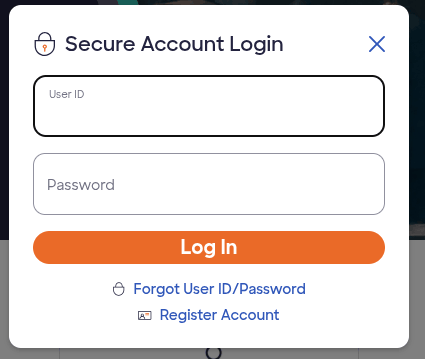
- Once the homepage opens up, click “Log In” in the top right corner.
- If you hold more than one Discover product, pick Credit Card from the menu that appears.
- Then enter your User ID and password and hit the login button. Your User ID is the name you created when you registered. It isn’t automatically your card number, and it may not be your email address either.
Sometimes Discover asks for an extra check after you submit, like a code sent to your phone or email. That’s normal. Finish it, and you’re in.
The mobile app works the same way. Download the official Discover app from the App Store or Google Play, tap Log In, and use the same User ID and password you use on the website. You don’t need a separate set of mobile credentials.
First time? Create your account first
If you just got your card, there’s no online account waiting for you yet. You have to register, and the link for it sits on the same login page: “Register Account.”
Discover will ask for four things to confirm it’s really you:
- your card number and expiration date
- your date of birth
- the last four digits of your Social Security number
Once those check out, you’ll create a User ID and password. Pick both with a little care, because you’ll be typing them for years.
A decent password mixes numbers and special characters instead of leaning on a word you could find in a dictionary.
Discover’s own guidance says the same. Skip birthdays, your street name, and anything that shows up on your social media.
If you use a password manager, this is a good moment to let it generate something long and save it, so you never have to remember it at all.
Trouble signing in
Before you start resetting things, check the boring stuff. Is Caps Lock on? Did your browser autofill an old password? Are you typing your card number where the User ID belongs? One of these is the culprit more often than you’d think.
Forgot your User ID or password
If the basics don’t fix it, use the recovery link right under the login fields. It’s labeled “Forgot User ID/Password.”
Discover will ask you to verify your identity with your 16-digit account number, your date of birth, and the last four digits of your Social Security number.
Once those match, you’ll get your User ID back. From there, you can either log straight in or follow the prompts to set a new password.
Discover also says the new password won’t expire, so you won’t be forced into another reset a few months later.
If you’re not sure which one you forgot, start with the User ID. Recover it first, then deal with the password if you still can’t get in. It saves you from guessing at passwords for an account name you’ve got wrong.
Locked out after too many tries
Enter the wrong password enough times, and the account can lock. Don’t keep hammering the login button. Call Discover at 1-800-DISCOVER (1-800-347-2683).
Their help pages say live agents are available around the clock, though a few specialized services may not be staffed 24/7. The agent can verify you and get you sorted.
Also, if you ever get a surprise lockout notice you didn’t cause, treat it as a flag. Someone else may have been trying your login. Mention that on the call.
Finding or changing your User ID once you’re in
Maybe you got in with a saved password, and now you can’t remember the User ID that goes with it. Once you’re logged in, open “Account Profile” from the top of the screen, and you’ll see your current User ID there. If you want a different one, click “Edit” under “Account Information.”
It’s worth doing this once and writing the ID somewhere safe, like your password manager. Future-you will be glad.
Keep your login safe
Login problems are annoying, but a hijacked account is worse. A few habits go a long way here.
Skip public Wi-Fi when you’re signing in to anything with money attached. Coffee shop networks are fine for reading the news. They’re not where your credit card login should happen. If you have to check your balance while traveling, use your phone’s mobile data instead.
Save your login details only on devices you trust and control. A shared family computer or a work laptop is a bad spot for a saved password.
Turn on account alerts. Discover can notify you about activity, and seeing a purchase pop up within seconds is the fastest way to catch fraud. A $4 charge you don’t recognize is often a thief testing the card before spending big.
And never give out your User ID, password, or verification codes to someone who contacts you first. Real Discover staff won’t ask you to read a code back to them.
If a caller or text says there’s a problem with your account, hang up and dial the number on the back of your card yourself.
A small note on the Capital One connection: Discover is now part of Capital One, and some Discover help pages mention it. Seeing that name isn’t a red flag by itself.
The point still stands, though. Reach the site by typing the address, not by clicking whatever shows up in a message.
What To Do After Logging In
Once you’re in, the account does a lot more than show a balance. You can scroll through recent transactions, pay your bill, update certain account details, and keep an eye out for anything odd.
Checking in every week or two takes almost no time, and it’s the best fraud detector you have. Statements only land once a month, which is a long time to let a bad charge sit there.
Spotting a $4 mystery purchase early, albeit a small one, often means catching a thief who’s still testing the card.
That said, you don’t have to rely on memory. Set up alerts from inside the account, and they’ll keep working in the background, pinging you whenever something happens. It ties right back to the safety tips above, and it’s one less thing to remember.
Most common problems and fixes
Most login trouble has a boring cause, so don’t make it a huge deal until you’ve tried the easy stuff.
If the page won’t load or the login button does nothing, switch browsers or clear your cache. Ad blockers and password managers sometimes mess with login forms, albeit not on every site.
Say the site rejects a password you’re sure is right. Autofill may be feeding it an old one. Delete the saved entry and type the password fresh. That said, if it still fails, reset it with “Forgot User ID/Password” instead of guessing again.
No verification code? Check the phone number and email you have on file. Discover can only send codes to the contact details it has, however annoying that feels when you’ve changed numbers.
Having said that, don’t throw in the towel if nothing works. Call 1-800-347-2683. Agents pick up around the clock, so you don’t have to wait for business hours.
The Wrap Up
Head over to discover.com by typing it yourself, tap Log In, and enter your User ID and password.
New cardholders register first with their card number, expiration date, date of birth, and the last four of their SSN.
If you forget something, “Forgot User ID/Password” fixes it in a few minutes, and if you’re locked out, a phone call gets you unstuck.
Ensure you set up a strong password, turn on alerts, and keep your codes to yourself. That’s about all it takes.