Can’t miss a Starbucks coffee during your office’s short break or after college? Then you must be saving cash by using the Starbucks gift card.
If you’re already using it, but don’t know how to check its balance, this article will help.
Starbucks offers a host of ways to access your gift card, but to find the best option, list your needs so you can choose the one that suits you best. Let’s get started.
How to Check Your Starbucks Gift Card Balance
It’s Straightforward to check your funds, as it takes only a few seconds with the app. However, there are also other ways that Starbucks offers. Let’s explore.
Check Online
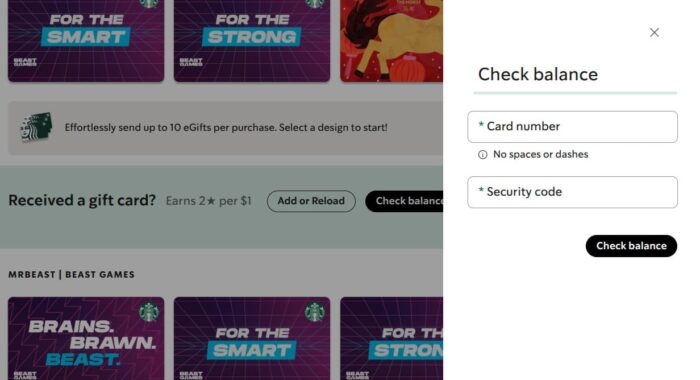
If you don’t want to download the app, this is the most convenient way.
- Head to Starbucks.com.
- Tap GIFT CARDS from the top navigation menu.
- In the Gift Cards page, click the Check balance button.
- Next, you’ll see a pop-up sliding through the right corner where you have to enter your Card number and Security code printed on the back of your card.
- Once you confirm your details and hit Check balance, you can view your remaining funds.
If you purchased an eGift card, you can find your code in your email.
Also Explore: How to check Disney Gift balance
Check Via Mobile App
Nothing beats the ease of checking a balance on a mobile app, as it doesn’t require sign-up or opening a browser. To start.
- Open the Starbucks app from your smartphone.
- Log in to your account by entering your Username and Password.
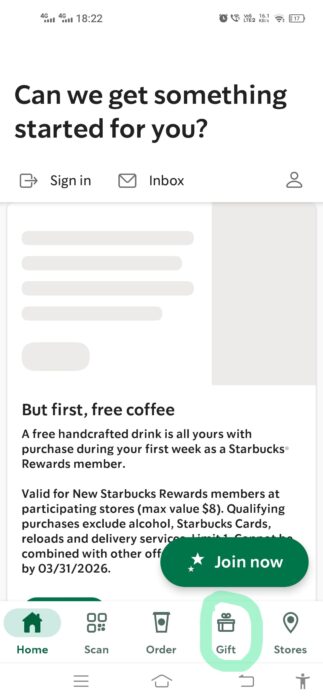
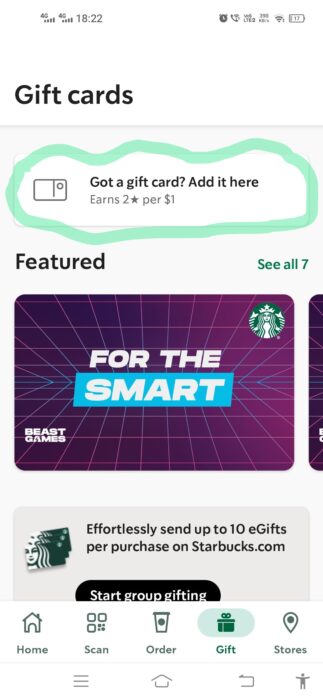
- Navigate to the Gift Card tab and tap the “Got a gift card? Add it here” option.
- Add your card or buy one from the displayed cards on the page.
- Once you’ve added it, tap your Gift card to see your funds.
This is really cool because it updates your funds after every single purchase. That said, you don’t have to enter your card number manually,
This method is best if you’re a Rewards member because you can track your funds and Stars in one place.
Quick In-Store Check
This is another option if you don’t have internet or a phone. When you visit any Starbucks store, you can hand your card to the barista and ask them to scan the card to check your remaining amount.
You don’t need to scratch the security code for this, as the barcode or magnetic strip is enough.
So, if you’re already ordering coffee, it only takes a few seconds.
Call Phone Number
Another option that is well-suited for when the website is not working, the app is not responding, or your Internet is poor.
When you call Starbucks, it just takes 1 minute to know the amount on your gift card.
You can find the number on the back of your card. So just make a call, and follow the automated prompts to check your balance.
You can find the number on the back of your card, followed by 1-800. So just make a call, and follow the automated prompts to check your balance.
While making a call, ensure you have your card’s credentials in place.
Via Starbucks Rewards
If you don’t add your card to your account, you will miss out on extra perks that you can rack up. Here’s what you get when you link your card:
- Your balance updates automatically.
- You can earn Stars on purchases.
- You can reload money instantly.
- You don’t need to worry about funds if you lose the physical card.
To add a card:
- Open the app and access your account.
- Navigate to the Gift Card tab and tap to add your card.
- Enter the card number and security code.
Why Check Your Starbucks Balance?
It’s quite necessary to keep tabs on your available balance before going out for dinner or ordering something.
In case you ordered something and later found out to have insufficient funds in your account, you can get into an awkward moment at checkout.
Apart from that, it also helps you:
- Track how much you’ve spent.
- Catch errors early.
- Notice if a reload didn’t go through.
- Plan your next visit.
Why does the Starbucks Balance Shows $0?
It may be possible that your account shows $0 after reloading your account, or it does not work when entering your login details.
There could be a host of reasons why it’s not behaving correctly. Here are the tactics to resolve your issue.
- Refresh the app or log out and back in.
- Wait a few minutes, as reloads can take time to update.
- Double-check you’re submitting the correct credentials.
- Get help from Starbucks support if the issue persists.
If the card does work in-store, you can ask the barista to enter the details manually.
Read: Why is my Vanilla gift card not working?
Why is Starbucks Balance Not Updating?
Here are a few ways to fix this issue.
- Restart the app.
- Update the app or remove and re-download the app.
- Check your internet connection.
- Remove and re-add the card.
- Confirm the reload payment was actually processed.
In case these options don’t work, reach out to the Starbucks Support Team.
FAQs
Head over to the Starbucks website, tap Gift Cards, and click on the Check balance button. Enter your Card number and Security code to view your funds immediately.
Launch the Starbucks app and tap “Gift Cards.” Your funds shows automatically if the card is already linked.
Yes. Visit any Starbucks store and ask a barista or cashier to scan your card to check an amount.
You generally need the physical card or barcode. The barista must scan or enter the card number to see the funds.
It could be a scanning issue, a temporary system delay, or you’ve selected the wrong card in the app. Double-check the details, or call customer support for further help.
No. You can only earn stars after making purchases using your Registered Starbucks card.
Normally, it is almost instant, but it may take a few minutes depending on the payment processing.
Wrapping It Up
That’s how you can keep tabs on your funds using your smartphone, with or without Internet access.
I’ve outlined every method that you need to link or view your Starbucks funds.
All the above methods are easy to follow and quite straightforward. You can view your available amount on your card in just a few seconds.